

The AI literacy course page in your admin portal lists teachers and admins in the selected school term and shows their progress in the AI Literacy course. From the same page, you can email reminders to anyone who hasn't finished.
Who can use it
You need the Admin role at your school. The page lists the teachers and admins in the term selected for your school. Students are not included.
Open the AI literacy course page
- Click Admin in the left sidebar.
- Under Professional development, click AI literacy course.
See who has finished
The top of the page shows how many staff finished the course. The bar beneath splits your staff into finished, partway, and haven't started. One tile per level shows how many people finished Level 1 and Level 2.
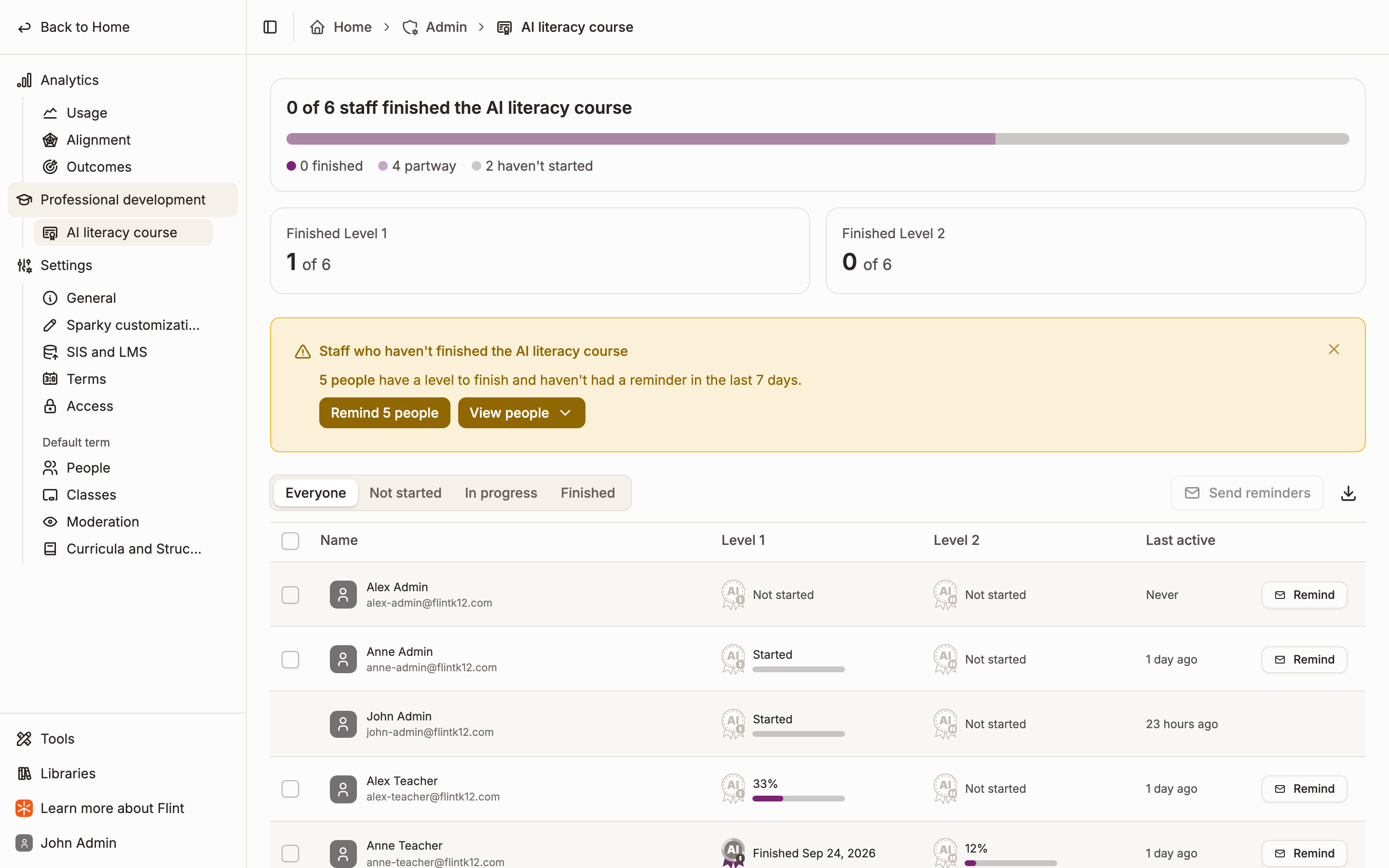
The table has a column for each level:
| What you see | What it means |
|---|---|
| Finished and a date | The person completed the level. Click it to open their certificate. |
| A percentage and progress bar | The person is partway through the level. The percentage is how much of their personalized lesson path they have completed. |
| Started | The person opened the level but hasn't completed a lesson yet. |
| Not started | The person hasn't opened the level. |
| Skipped | The person went straight to a later level. Flint counts a skipped level as done. |
Last active shows when each person last worked in the course.
We're moving completions from the earlier version of the AI Literacy course into Flint. Until that's done, teachers who finished the earlier version show as Not started here unless they've begun the new version.
To see how your school compares with other schools, open the AI Literacy school leaderboard. It ranks schools by how many teachers completed the course.
Use the Everyone, Not started, In progress, and Finished filters above the table to narrow the list. To save everyone's progress as a spreadsheet, click the download icon next to Send reminders.
Send reminders
Flint emails each reminder in your name, and replies come to your inbox. Each person gets the email that matches where they are: an invitation to start the course, a reminder to finish their current level, or an invitation to start Level 2.
To remind one person, click Remind on their row.
To remind a group:
- Check the box next to each person. To select everyone in the current filter, check the box in the table header.
- Click Send reminders.
- Review who gets which email, then click Send reminders to confirm.
To remind everyone who hasn't finished, click the Remind button in the yellow banner at the top of the page, then confirm. The button shows how many people it reminds, for example Remind 5 people.
Flint skips anyone who already finished and anyone who got a reminder in the last 7 days, and tells you how many people it skipped. After a reminder goes out, the person's row shows Reminded and how long ago.
Tip: To remind only the staff who haven't started, choose the Not started filter, check the box in the table header, and click Send reminders.