

There are two ways to get a session out of the way, and they are not the same:
| Archive | Delete | |
|---|---|---|
| What happens | The session leaves the activity's Sessions list but is kept | The session is removed permanently |
| Can it come back? | Yes — open it from the archived filter and click Unarchive | No — this action cannot be undone |
| Who can do it | The teacher who owns the activity, or the student who owns the session when the activity allows it | School owners — normally admins, also teacher-labelled school creators |
Archive keeps a session or chat; delete removes it. The labels below say "session" on an activity session and "chat" on a standalone chat. Permissions differ for direct class chats: other people's direct class chats are view-only, even for school owners.
Archive a session
- Open the session.
- Click the ⋯ More actions menu at the top of the page and choose Archive session.
- Type Archive to confirm — this enables the Yes button — then click Yes.
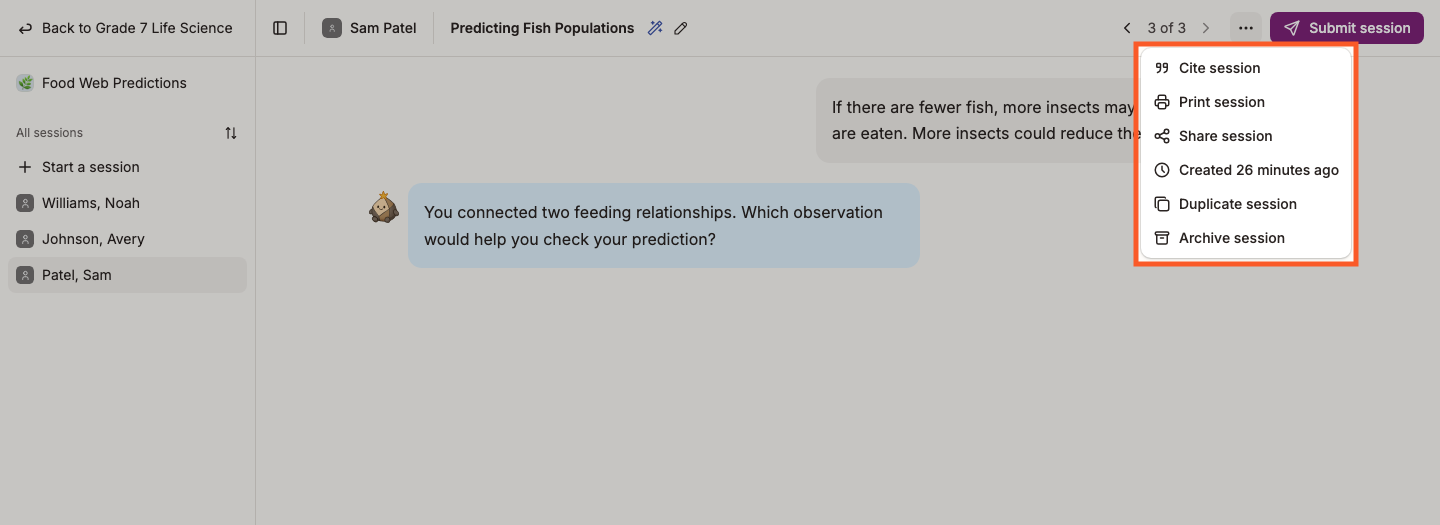
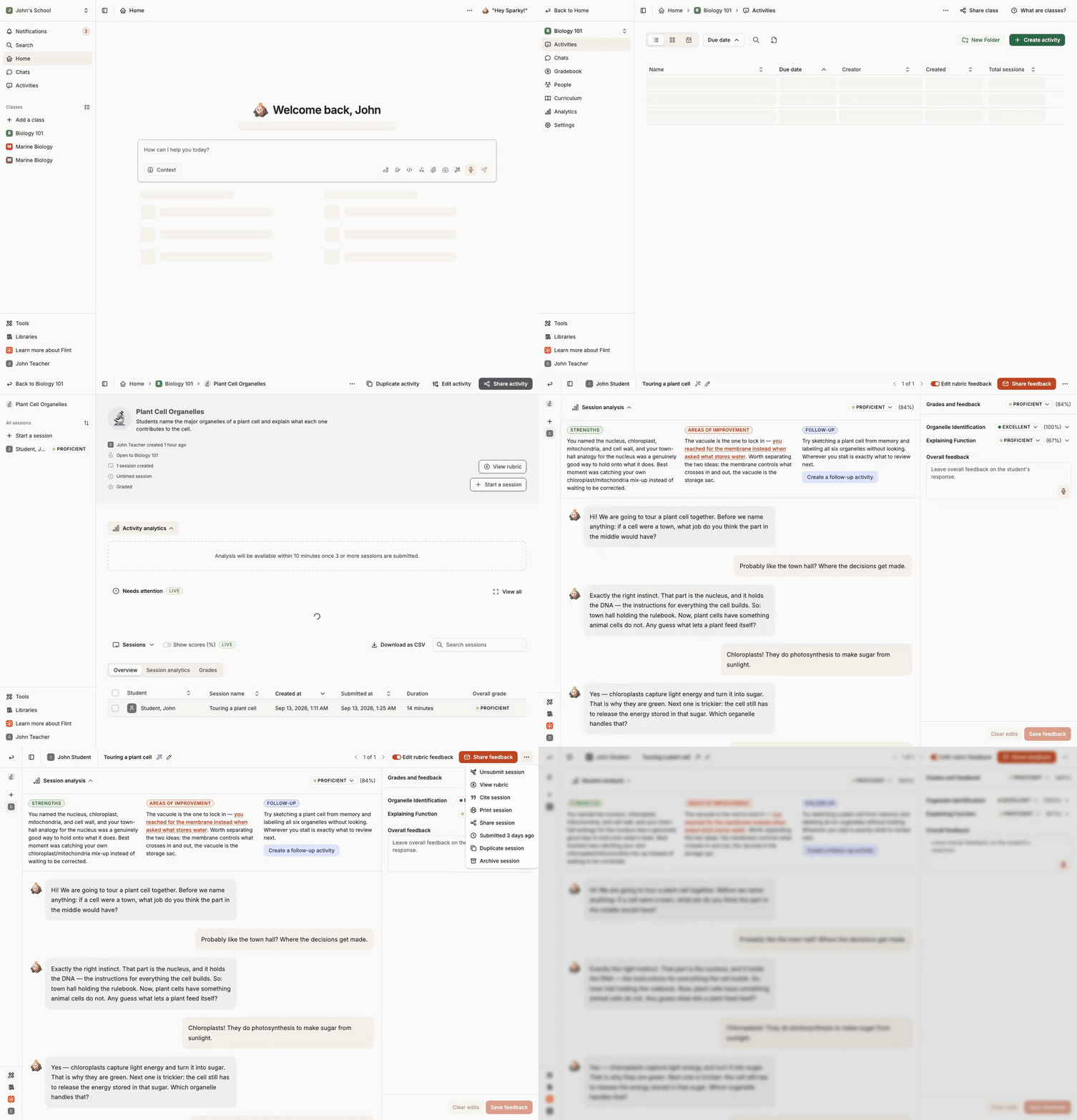
The recording stops before confirmation. Type Archive, then click Yes to finish.
The session moves out of the activity's Sessions list. Teachers find it again by switching that list's filter to Archived sessions. Students click their name in the sidebar, choose My profile, open the Sessions tab, and switch My sessions to My archived sessions. More about finding archived work.
Personal chats can be archived from the chat's own Archive action or the Archive chat option in the sidebar. Chats you started appear under My archived chats on your profile's Chats tab in the selected term. For another person's chat you can edit, use Search or the retained chat link.
Students can archive their own sessions only when the activity's Session archivable setting is on and the activity is not paused. Teachers can archive any session in their activities.
Bring it back
Open the archived session. A banner at the top says when it was archived; click Unarchive, then Yes in the confirmation dialog, and it returns to the list. There is no word to type this time. (The Unarchive button is not offered while the activity or class it belongs to is itself archived.)
Delete a session
Deleting is for school owners, and it is permanent. Most school owners are admins, but a teacher-labelled person who created the school can also hold ownership. Owning an activity alone does not let an ordinary teacher delete its chat sessions.
- Open the session.
- Click the ⋯ More actions menu and choose Delete session.
- Type Delete to confirm — this enables the Yes button — then click Yes.
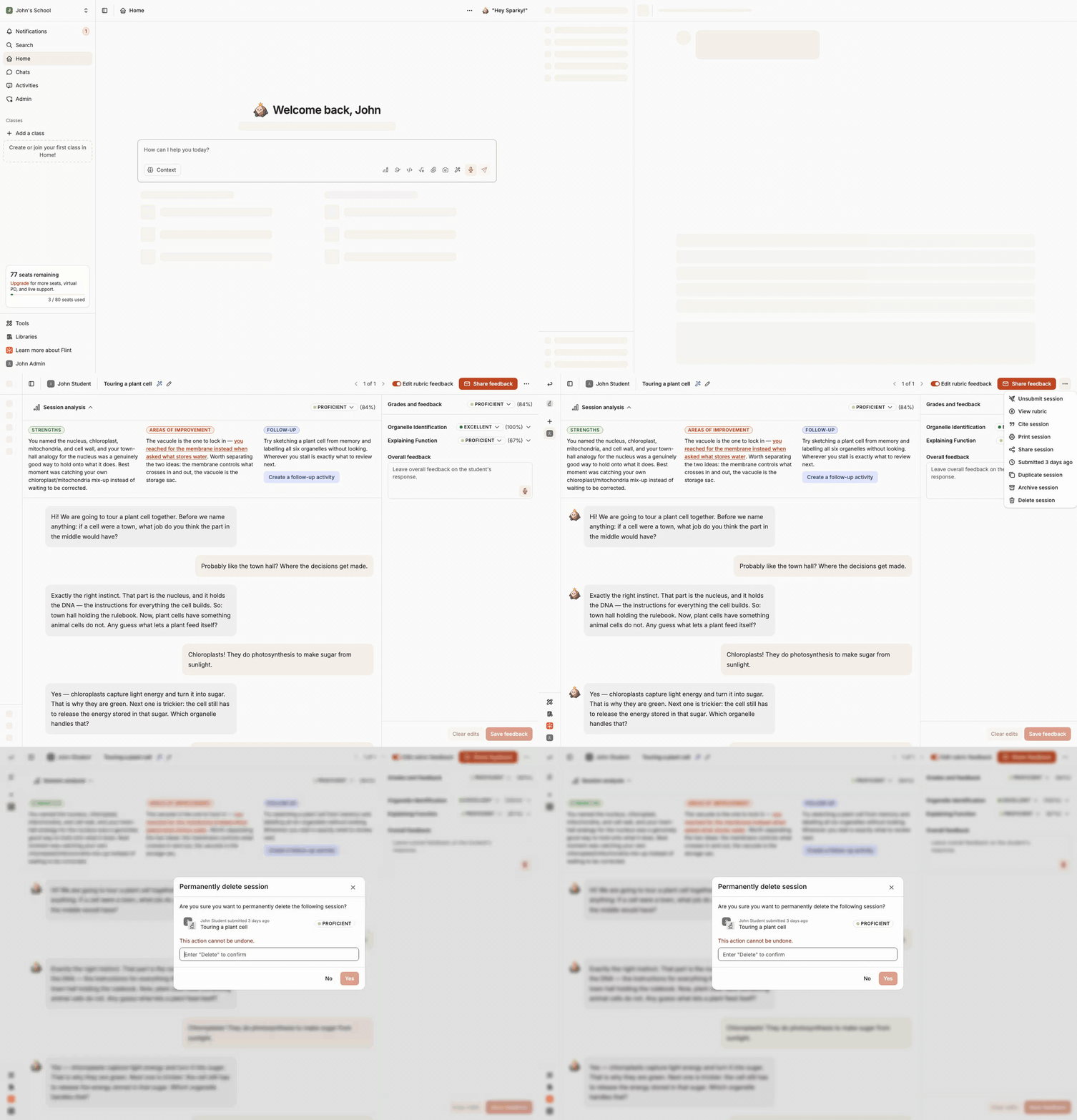
The recording stops before confirmation. Type Delete, then click Yes to finish.
School owners can also select several non-archived sessions in an activity's session table and use Delete sessions. To delete an archived session, open it and click Delete in the archived banner. School owners can delete a personal chat with Delete chat in the sidebar.
Ordinary teachers and students do not see a delete option. If work must be removed rather than archived, ask a school admin — or, for a data request, see Can I delete my chats in Flint?. These instructions cover chat sessions, not file-upload or assessment submissions, which activity editors can delete.
Deleting a chat or session also stops shared links to artifacts generated in that conversation from working. Archive instead if those links need to remain available.